How to find an article you read weeks ago, when you only remember the gist
By Imran6 min read
On this page
You read it a few weeks ago. It argued something you agreed with, it had a chart halfway down, and you remember thinking you would need it for the essay. Now you need it. You can't find an article you read three weeks ago, because you remember what it said and not one word of what it was called.
This post covers why that happens, where to look first when you only remember the gist, how to search the web for it with better terms, and how to make the next article findable by a description of what it argued.
Why do you remember the gist and not the title?
Because that is how memory is supposed to work. In a 1967 study, the psychologist Jacqueline Sachs played people recorded passages and then tested them on one sentence from each, sometimes reworded and sometimes with its meaning changed. A short way into the passage, people could barely tell whether the wording had changed. They still noticed when the meaning had.
We keep the meaning and let the exact words go. Most search boxes work the other way round: they match words. So your memory hands you "the one about why students forget a lecture by the weekend", the article was titled "Spacing effects in undergraduate recall", and the two share nothing a search box can match.
What do you still remember? Write the cues down first
Before you search anything, spend a minute on what you do know. Each cue points to a different place to look.
When. Roughly which week, and what you were working on then. That narrows your history and any date filter.
Where. Laptop or phone, in a browser or inside an app. History is kept per browser, and per device unless it syncs.
How it reached you. A newsletter, a link in a group chat, a professor's reading list, or a search you ran yourself.
What it argued. One sentence, in your own words.
One odd detail. A name, a number, a study, an unusual word. Odd details make good search terms, because they appear on fewer pages.
You may also remember that the chart was blue. That is less useful than it feels.
How do you search your browser history for an article?
If you read it in a browser, start there. It is the one place that recorded the visit without being asked.
Open History from Chrome's menu, or type
chrome://historyinto the address bar.Search for a word that would be in the title or the site's name: the odd detail, not the topic.
If you know roughly when, scroll that week. Reading one day's visits is often faster than guessing words.
Look for your other devices. If you are signed in to Chrome and sync your history, the History page also shows pages you visited on them.
Two limits to know before you spend an hour here. Chrome's History lists the pages you visited in the last 90 days, so an article from last semester may already be gone. And pages you opened in an Incognito window are never in it.
If you are in the US and use Chrome in English, you can turn on History search, powered by AI under Settings, then AI Innovations. It lets you describe a page in plain words instead of guessing its title. It only covers sites you visit after you turn it on, so it helps your next search more than this one.
How do you search the web for an article you half remember?
If your history comes up empty, search the web again, but not the way you did the first time. Google's own search help lists a few operators that do most of the work:
Quotes for the one phrase you are sure of.
"spacing effect"matches that exact phrase. Use quotes on the odd detail, not on a whole remembered sentence: you probably remember the sentence's meaning, not its words.site: for where you read it.
site:substack.com spaced repetitionkeeps the results to one site. No space after the colon.before: and after: for when.
after:2026-09-01 before:2026-10-15sets a date range. Google says these filter by when a page was last updated, so give the range some slack.A minus sign for what keeps getting in the way.
-reviewdrops pages with that word.
Then describe the argument the way the author would have. You remember "students forget lectures by the weekend"; the author probably wrote "retention" or "the forgetting curve". Try the technical word and the everyday one.
Where else could the article be?
Most articles reach you through someone or something else. Look where it came from:
your email, for the newsletter that sent it;
group chats and course channels, where links get posted and scroll away;
the reading or social app you opened it in, which may keep its own history or likes;
your own notes, if you pasted a quote anywhere.
How do you make sure you can find an article you read next time?
Everything above is detective work, and it fails in predictable places: day 91, the Incognito tab, the link in a chat that scrolled away. The fix is to keep the article on purpose the moment you think "I'll need this", somewhere that searches the way you remember.
That is what we built Relic AI for.
Save in one click. The Chrome extension (desktop Chrome and other Chromium browsers) saves the page you are on. Relic AI keeps the article's text and gives it a summary, key takeaways, a category and tags, so there is nothing to file.
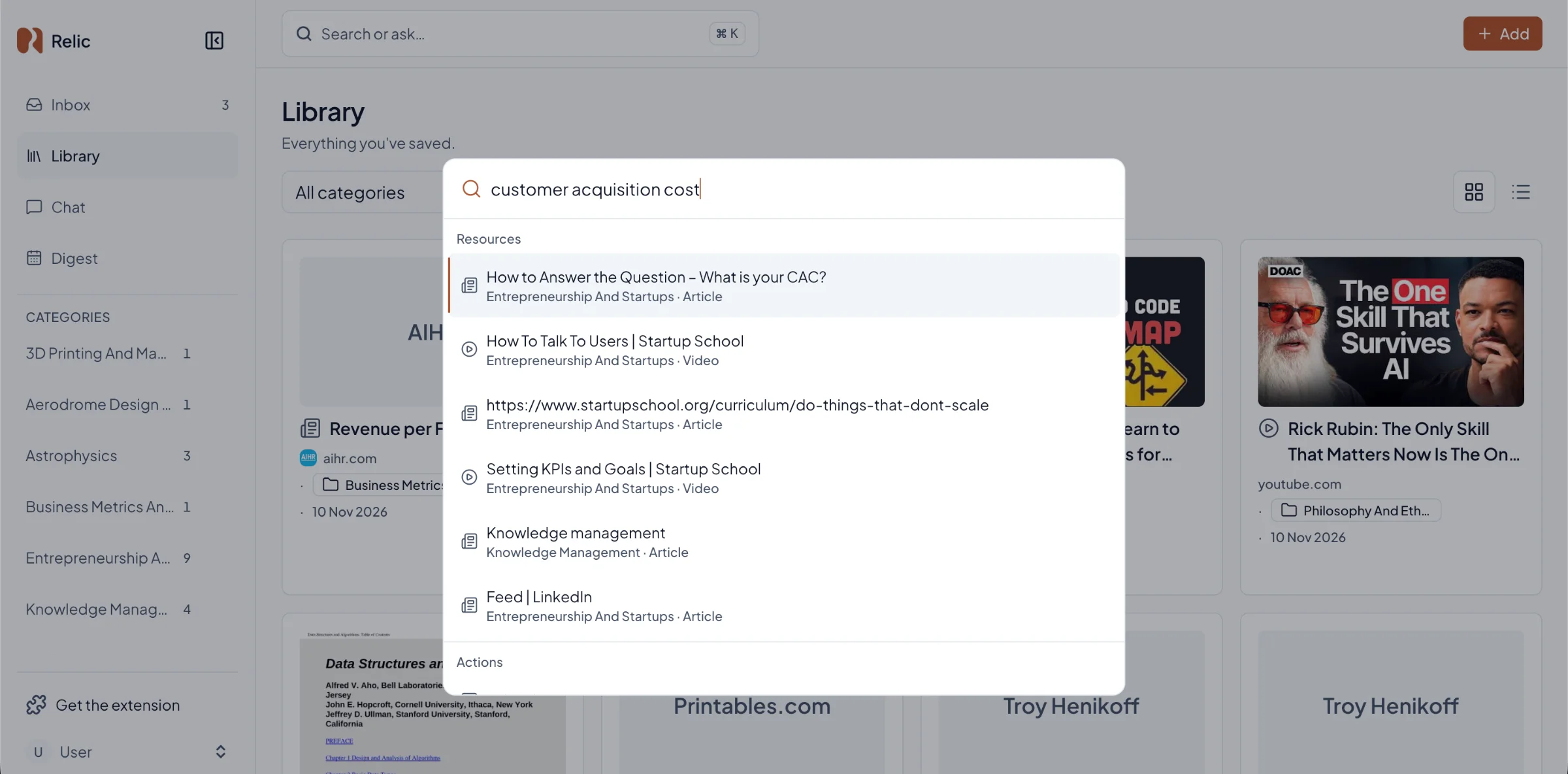
Search by what you remember. Press ⌘K (Ctrl+K on Windows) and type the gist: "the one about students forgetting lectures by the weekend". Relic searches the text of your saves by keyword and by meaning, so it can find the article even when none of your words are in its title.
Ask instead of searching. Ask Relic answers from your saves with numbered sources, and each number opens the passage it came from. When nothing relevant is saved, it says so.
Related saves. Every save shows related saves beside it, so finding one article often turns up the other two you read that month.
One honest limit: Relic AI finds what you saved. It doesn't read your browser history, so an article you never saved is still a job for the steps above. If your half-remembered articles are sitting in browser bookmarks, the guide to chatting with your bookmarks shows how to bring them in. And if your saves tend to pile up unread, why you save things and never read them covers the other half of the habit.
Questions people ask about finding an article you read
How far back does Chrome's history go?
The History page lists the pages you visited in the last 90 days. Pages from Incognito windows aren't kept at all.
Can I find an article I didn't save by describing it?
Sometimes. In Chrome, the AI history search does this for sites you visited after turning it on, in the US and in English. On the web, describe the argument in the words the author would likely have used, and add a date range. Relic AI can only search what you saved.
Does meaning search need the exact words?
No. Keyword search needs the words. Meaning search matches what a passage is about, which is why a description of the argument can find it. Relic AI runs both and combines the results. When you ask a question instead, the answer comes only from your saves, which is why it differs from a general chatbot's.
What to do this week
The next time you catch yourself thinking "I'll need this", save it then, not three weeks later. A few days on, try finding it the way you will actually remember it: one sentence, in your own words.
Relic AI is free during the beta. It's a beta, so expect a few rough edges. If you want your saves to be findable by the gist, join Relic.