Your YouTube Watch Later list, finally useful: a ten-minute weekly routine
By Imran and Sara7 min read
On this page
You press Save on a forty-minute talk, a recipe, a tax explainer and a guide to fixing the dishwasher. You mean it, too. A year later your YouTube Watch Later list runs to hundreds of videos, nothing in it says why you saved them, and the dishwasher has long since been replaced.
You have company. In Pew Research Center's 2025 surveys, 84% of US adults said they use YouTube, and 33% said they visit it several times a day. This post is for anyone who saves more YouTube than they can watch: tutorials, talks, podcasts, explainers, how-tos. It covers how to clean up Watch Later, how transcripts make saved videos searchable, a ten-minute weekly routine, and how to import an entire YouTube playlist so you can use it.
When I finally counted, my own Watch Later list had 214 videos in it.
Why does your YouTube Watch Later list keep growing?
Saving a video takes one tap. Watching it takes forty minutes. That was never going to be a fair fight, and it is the same gap behind why you save things and never read them.
Video makes it worse in one specific way: you can't skim it. You can scan an old article in thirty seconds and know whether it still matters. With a saved video you have the title and the thumbnail, and both were made to earn a click, not to help you decide eight months later. So you scroll past it, and it stays.
Most people have more than one pile, too. There is the course playlist you got three videos into, the conference talks you meant to catch up on, and the Liked videos you treat as a second Watch Later list.
How to clean up your Watch Later list on YouTube
To find the list, tap your profile picture to open the You tab and choose Watch later under Playlists. On a computer, it is in the left sidebar. Then do these in order:
Remove what you already watched. Open the three-dot menu on the Watch Later page and choose Remove watched videos. Some accounts reportedly don't see this option, and guides disagree on whether it also clears videos you only started.
Sort the oldest twenty by hand. Ask one question of each: would I miss this if it vanished? If not, press More next to the video and choose Remove from Watch later.
Stop there. Twenty a week beats a purge you never start. YouTube has no built-in button to empty the whole list. Browser extensions can do it, so check what access they ask for before you hand one your account.
YouTube transcripts: how to search inside a saved video
A cleaner list still has a problem. Watch Later, like every YouTube playlist, knows the title of a video, not what anyone said in it.
Transcripts fix that, one video at a time. On a video's page, open the three-dot menu below the video and choose Show transcript. If it isn't there, look in the description, since YouTube moves it around. You get the captions as timestamped lines you can read in a minute or two.
Often that text comes from YouTube's automatic captions, so two limits apply. Not every video has them: YouTube lists poor sound, overlapping speakers, a long silence at the start and unsupported languages among the reasons. And they are machine-made, so quality varies.
The transcript panel also only helps once you have found the right video. It can't tell you which of your three hundred saved videos explained mortgage points. For that, the transcripts need to live together somewhere you can search. If you want that for a whole playlist, our guide shows how to transcribe a YouTube playlist and ask it questions.
A ten-minute weekly routine for your Watch Later list and playlists
Pick a day and set a timer. The timer matters: this is a sorting pass, not a viewing session. Start with Watch Later, and give any other playlist the same pass once that one is under control.
Minutes 0 to 2: clear
Remove what you watched this week, and look at what came in.
Minutes 2 to 6: skim instead of pressing play
For each new video, read the transcript's first few lines or a summary. Sort it into one of three piles: watch it, keep it for reference, or let it go. Most how-tos are reference. You don't need the dishwasher video until the dishwasher starts making that noise again.
Minutes 6 to 8: make reference videos findable
Move the keepers out of the queue and into a place you can search, so they stop competing with what you actually want to watch.
Minutes 8 to 10: choose one or two
Pick the videos you will really watch this week and decide when: the commute, the gym, Thursday's dishes.
You can run all of this with YouTube alone. It is just slower, one transcript panel at a time.
How to import an entire YouTube playlist into Relic AI
We built Relic AI because we kept losing things too, Watch Later included. The first chore it removes is getting the videos out of YouTube: you can bring in a whole playlist at once, not one video at a time. That covers a course, a conference's talks, a creator's tutorial series or a list of recipes, as well as Watch Later.
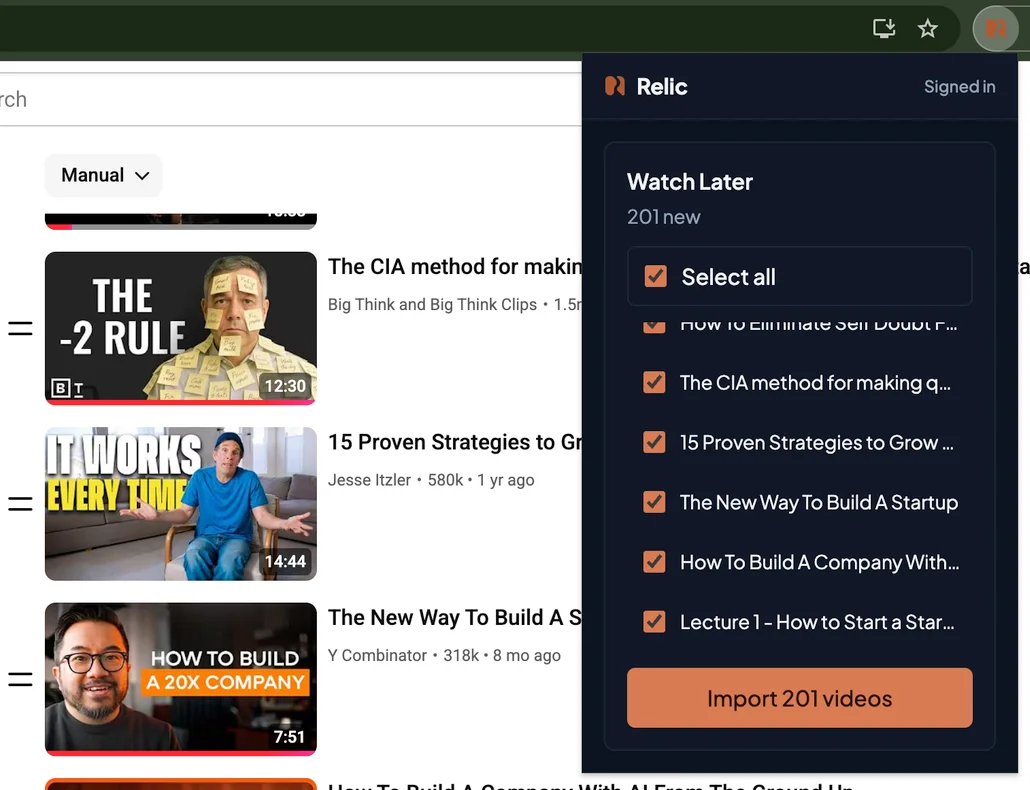
Watch Later, Liked videos and private playlists. Open the playlist in desktop Chrome or another Chromium browser and click the Relic AI extension. YouTube's API has returned empty lists for Watch Later since 2016, so tools built on it can't read yours. The extension reads it from your own signed-in tab when you click.
Public playlists. Paste the playlist's link into the web app and choose The whole playlist.
Either way, every video is listed and ticked, so importing the entire playlist is one click, and you can untick the ones you don't want. An import takes up to 1,000 videos. Videos already in your Library are marked and left unticked, so importing the same list next week brings in only what is new.
Each video arrives as its own save, with its own category and tags. Relic AI doesn't keep the playlist together as a group.
What Relic AI does with every video you import
Transcripts from captions. Relic AI fetches each video's captions, in the video's spoken language, and keeps a timestamped transcript. It reads captions and doesn't transcribe audio, so a video with no captions is saved without a transcript, and the save tells you so.
Something to skim. Each save gets a summary, key takeaways, a category and tags automatically. That is minutes 2 to 6 of the routine, already written.
Search by what was said. Keyword and meaning search run across your saves, so you can find a video by the idea in it when you can't remember the title. The Library filters by type when you only want videos.
Ask instead of rewatching. Ask Relic answers only from your saves, with numbered sources you can open, and says when nothing relevant is saved. Pin up to 5 saves to a question to compare what two talks actually said.
What's next, on your schedule.The weekly Digest picks the saves worth getting to next, on the weekday and hour you choose. It is in-app and covers your whole Library, so articles and PDFs show up beside videos.
For the bigger picture, read how Relic AI handles everything you save.
Questions people ask about YouTube Watch Later and playlists
Can I import an entire YouTube playlist?
Yes. In Relic AI, public playlists come in by link, and Watch Later, Liked videos and private playlists come in from the extension, up to 1,000 videos per import.
Is there a limit on the Watch Later list?
Developers and guides report a cap of 5,000 videos per playlist, and report Remove watched videos failing on lists that size. The YouTube Help pages we checked don't state a number, so treat it as reported, not official.
Can I get transcripts for all my Watch Later videos?
On YouTube itself, one video at a time. In Relic AI, import the list and each video with captions gets a transcript. A video with no captions won't.
Can I search my saved YouTube videos by what was said?
Not from the Watch Later page, which shows you titles and channel names. You need the transcripts in one searchable place, which is what the import above does.
Does importing change my playlists on YouTube?
No. The extension reads the list and sends only the videos you tick. It never changes your playlists, so clearing watched videos stays a job for YouTube.
Does this work on my phone?
Importing Watch Later or a private playlist doesn't: the extension runs on desktop Chrome and Chromium browsers. The web app works in a mobile browser, for public playlists by link and for everything once it is saved.
What to do this week
Open your Watch Later list, or the playlist you keep meaning to finish. Remove what you watched, sort the oldest twenty, and pick one video to actually watch. It takes ten minutes, and you will know by next week whether the habit sticks.
Relic AI is free during the beta. Try it on your Watch Later list or any playlist.